
English
macOS app
A small native SwiftUI app. It runs the YunBox command line bundled inside it, so it uses exactly the same Git and LFS checks.
Install
Download the latest YunBox-macOS.zip from the website, unzip it and drag YunBox into Applications. You need Node.js 22.18+ on your Mac. Starting with 0.1.6, the app requires macOS 26 or later; versions up to 0.1.5 still support macOS 14 or later.
From 0.1.5 on, the app is notarized by Apple, so it opens with a double-click and macOS no longer says the developer can't be verified.
Version 0.1.4 and earlier
These versions aren't notarized. If the first launch says the developer can't be verified, go to System Settings → Privacy & Security and click Open Anyway, or run this in Terminal:
bash
xattr -dr com.apple.quarantine /Applications/YunBox.appApps from 0.1.4 and earlier can't update themselves yet, so download the latest version and replace the app.
You can also build it from source with Xcode 27.1 (including the macOS 27.0 SDK), using the same toolchain configuration as release builds:
bash
pnpm install
./script/build_and_run.sh --install   # installs to ~/Applications/YunBox.app and opens it
Setup assistant
On first launch, the app checks Node.js, Git and Git LFS, helps you choose a Git repository and configure push protection, then offers optional asset storage. You can defer setup and reopen it from Help → Setup Assistant… or Settings → Push Protection.
Protection applies to the selected repository by default and asks before an over-budget push. Checks and confirmation dialogs work with the app closed; without an answer, the push is cancelled. Freeze windows always block pushes. You can use protection without connecting cloud storage.
“Apply to all repositories on this Mac” is optional. It preserves repository hooks and runs uploads only after the check passes. A repository's custom hooks directory overrides the global setting; the assistant shows whether protection actually applies. Existing global hook managers are never overwritten. You can remove global protection in the assistant. Existing repository wrappers take precedence to avoid checking twice.
Storage initialization also installs repository protection, preserving existing hooks and confirmation choices. See Push inspection for commands and limitations.
Updates
The app updates itself with Sparkle. It checks once a day in the background; when there's a new version it shows the release notes, and Install Update downloads it, replaces the app and reopens it. You can also check any time from YunBox → Check for Updates…, or go to Settings → Software Update to turn off automatic checks or have updates downloaded and installed automatically.
Updates and their release notes are signed, and the app only installs an update whose signature matches the public key built into it. Version 0.1.4 and earlier can't update themselves yet, so download a new version by hand once. To see what changed in each version, read the changelog; it also opens from the Help menu and from Settings → Software Update.
Interface language
The app comes in Simplified Chinese and English and follows your system language by default. To choose one just for YunBox, use Settings → Language; it takes effect after the app reopens. System Settings → General → Language & Region → Applications changes the same setting. Release notes in the update prompt follow the interface language too. Messages printed by the command line (such as the checks in yunbox doctor) are only in Chinese for now. The website and documentation are available in Simplified Chinese and English.
What it does
- Push size: choose or drag in a Git repository to see its estimated Git pack size and LFS candidate size, its budgets and whether anything is over. For repositories connected directly to COS, it shows how much LFS data actually needs uploading, and files already in COS are marked In COS. Files are sorted largest first, and you can search, filter by type, or show only files over budget.
- File details: select a file to see how it changes with the push. Images can be shown side by side, compared with a draggable divider, or toggled back and forth. Text files show a diff, either unified or split. Anything else can be opened in Quick Look, before and after. Content comes from the commits being pushed, not from your working tree. You can also copy the path or show the file in Finder.
- Storage status: next to the repository title you'll see which storage the repository uses directly and how it's doing, such as "Direct COS · OK", "Direct R2 · Needs attention" or "Storage not connected" (Tencent Cloud COS shows as COS; S3-compatible storage shows as R2, AWS S3 or MinIO based on the endpoint, and other services as S3). Click it to open the Storage panel with each
yunbox doctorcheck and the commands that fix problems. - Hand setup to AI: Copy Setup Prompt for AI in the Storage panel builds a prompt with the steps for the repository's storage (or, before it's connected, for the storage chosen in the panel) that you can paste into a coding assistant. See Set up with an AI coding assistant.
- One-click setup: for a repository that isn't connected yet, first choose the storage in the panel:
- Tencent Cloud COS: pick an existing bucket or create a private one, enter a folder prefix, and the panel runs
git yunbox initfor you. - S3-compatible storage: choose Cloudflare R2 (enter your account ID), AWS S3 (enter the region), MinIO or another service (enter the endpoint), then the bucket and folder prefix, and the panel runs
git yunbox init --preset …. YunBox can't list or create S3 buckets, so create a private bucket in the service's own console first. R2 tokens can be limited to buckets but not to prefixes, so use one bucket per project; see R2 and S3-compatible storage. You can enter your Access Key ID and Secret Access Key in the same form, and they're saved on your Mac before connecting.
- Tencent Cloud COS: pick an existing bucket or create a private one, enter a folder prefix, and the panel runs
- Saving keys: when your Mac has no key for the repository's storage (the "COS 密钥" or "S3 密钥" check fails), the panel shows a form for it: the SecretId / SecretKey of your sub-account for COS, or the Access Key ID / Secret Access Key for S3. The SecretKey and Secret Access Key go in a secure field and reach
yunbox login(yunbox login --provider s3for S3) only on standard input, never in command-line arguments or logs. - Push freeze in the menu bar: the menu bar shows the YunBox mark, with a dot at the top right when the current repository is in a push freeze. The icon's lid opens with the panel and closes with it, and the dot pops in when a push freeze starts. Opening the panel refreshes project statuses with a smooth transition. With Reduce Motion enabled in macOS, the icon and panel change immediately without animation. Open the panel to see whether you can push now, today's timeline and the next 7 days' freeze windows. Global Rules (every repository on your Mac) and each project's rules are listed separately, and each can use presets such as Working hours or Weekends (picking one for a project also installs the pre-push wrapper if it's missing). Make Current switches to a project, Add Project… adds one that isn't listed, and Edit Push Freeze… lets you write custom rules. If the pre-push wrapper isn't installed, you can install it right there. The switch in the panel header turns every push freeze off at once (the rules are kept), or you can switch them off for 30 minutes, 1 hour or until the end of today, after which they come back on by themselves.
- Asset types: the Asset Types button next to the repository title shows and changes LFS rules by type. See Asset Types below.
- Recent repositories: up to 12. When you switch, the last result shows first and is replaced once a fresh check finishes in the background. Besides the repositories you open in the app, any repository where the command line ran
init,hook,freeze,types,inspect,statusordoctor(including the pre-push check on every push) shows up in the list by itself. The record lives only on your Mac, in~/.config/yunbox/repositories.json, and holds just the repository path and the time; a repository you remove from the list comes back only when the command line uses it again. - Pinned: right-click a repository and choose Pin to move it to the Pinned section at the top of the sidebar. New repositories never push it out of the list and Clear Recents leaves it alone; drag to reorder, or right-click → Unpin to put it back among the recent ones.
⌘1–⌘9go to pinned repositories first, then to recent ones. - Recently Blocked: the sidebar shows up to five repositories blocked within the last 14 days, with the latest reason and time. Hover for details, click to inspect, or hide a shortcut from its context menu; a new block makes it appear again.
- Push Protection History: open it from the toolbar, the Inspect menu, or a repository’s context menu. Filter by project to see multiple timestamps, freeze or budget reasons, decisions and user notes, including Blocked, Cancelled by User and Confirmed to Continue. A continuation means the protection check allowed the push; Git reports whether the later upload succeeded.
- Local storage and cleanup: history stays on this computer in
~/.config/yunbox/push-history.json; it is not uploaded or committed. Retention is 90 days, up to 200 decisions per project and 5,000 overall. Clear History lets you clear one project or all projects after confirmation, without changing hooks, Git settings, assets or keys. Existing latest entries in the oldblocked-pushes.jsonare imported; entries already overwritten by the old version cannot be recovered. WithYUNBOX_CONFIG_DIRorXDG_CONFIG_HOME, history uses that directory; an app opened from Finder or the Dock must use the same directory to see it.
Asset Types
Next to the repository title you'll see "Asset types · 5 of 7 in LFS". If assets have been committed as ordinary files, it turns orange: "Asset types · N files not in LFS". Click it (or choose Inspect → Asset Types…) for the graphical version of git yunbox types:
- Types: Textures and images, Design source files, Models and animation, Audio, Video, Fonts and Archives. Each shows whether it's all in LFS, partly in LFS or not in LFS, how many files have been added to Git, and how many of those are LFS pointers. Expand a type to see whether each extension goes through LFS. Rules written by hand or added with
git lfs trackare marked Other rule, and the app never deletes them. - Add and remove: Add appends the rules for that type (
git yunbox types add); Remove… deletes the rules YunBox generated after you confirm (git yunbox types remove). Files already stored as LFS pointers aren't touched. The presets at the top (Game, Design, Images, audio and video, All types) add several types at once; a preset whose types are all in LFS already shows a check mark. - Assets committed as ordinary files: grouped by reason: the extension is in a different case (such as
HERO.PNGon Linux), the rule exists but the file was committed before it, or there is no rule at all. For the last two, Use LFS from the Next Commit… runsgit yunbox types add <type> --renormalizeafter you confirm. It adds the rules and stages.gitattributestogether with the files' current content, so from the next commit on they're stored as LFS pointers. Existing commits (history) stay as they are. Extensions in a different case need rules of their own; the panel shows the commands for that.
Every change goes only into .gitattributes and the staging area; nothing is committed. The command output appears at the bottom of the panel, and you commit when you're happy with it.
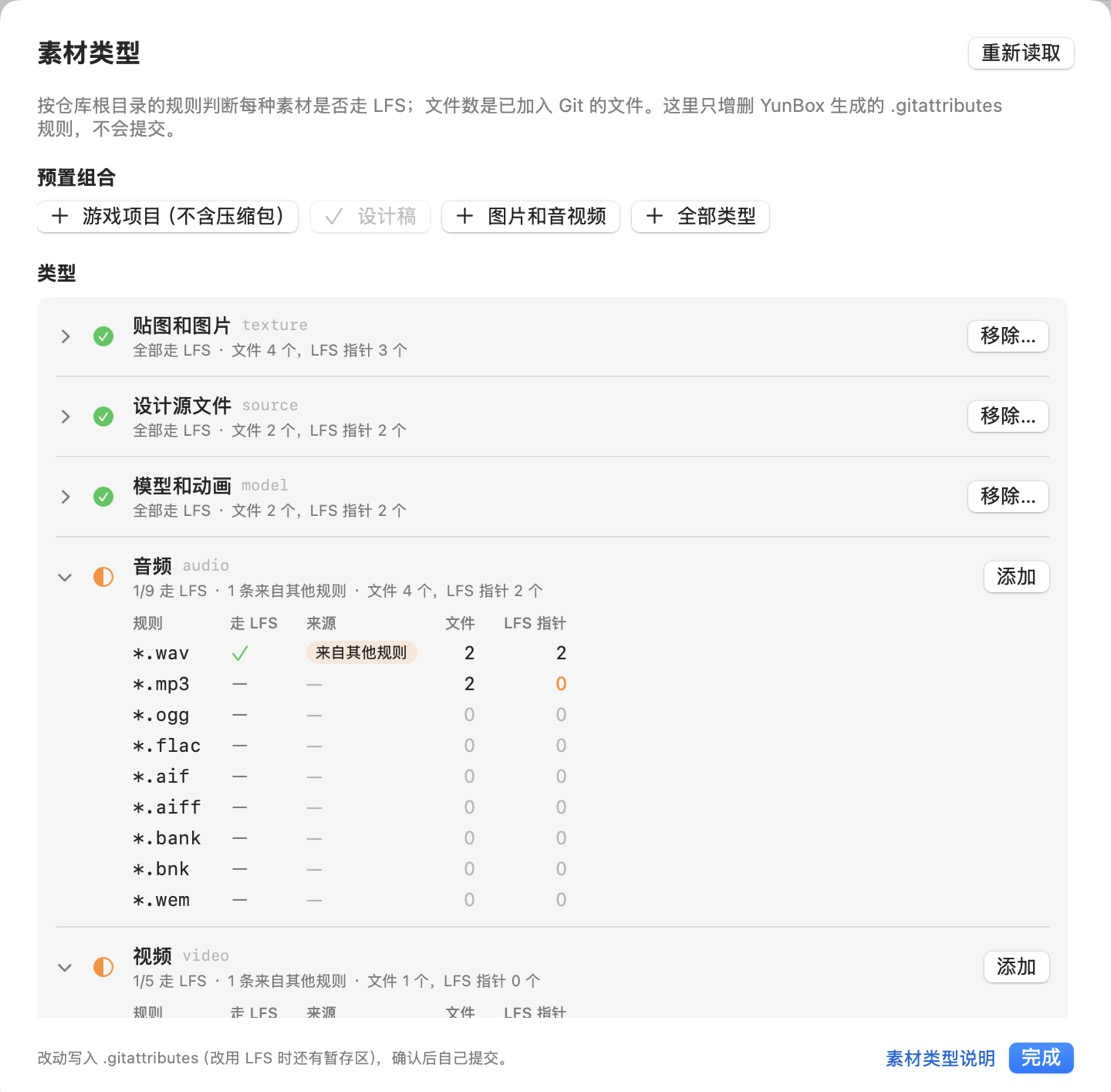
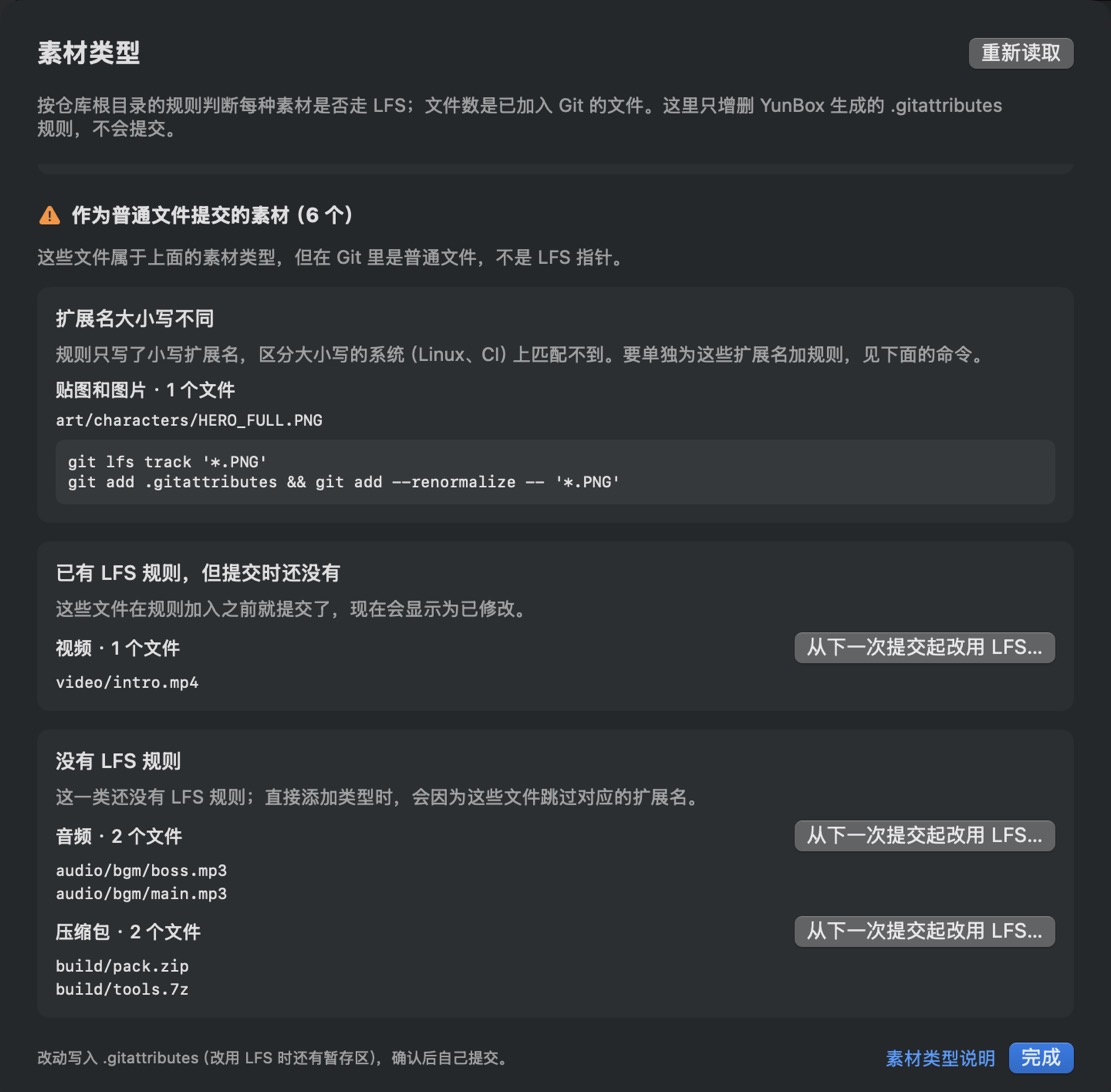
Left: the presets and the list of types at the top of the panel; Audio's *.wav comes from a hand-written rule. Right: further down, the assets committed as ordinary files. (Screenshots show the Chinese interface.)
Help and documentation
The Help menu opens the website's documentation directly, in the app's interface language. Help in the menu bar panel opens Push freeze, and the editing window and the Storage panel link to the matching pages too.
Keyboard shortcuts
| Shortcut | Action |
|---|---|
⌘O | Choose a repository |
⌘1–⌘9 | Switch to a pinned or recent repository |
⌘R | Check again |
⌘. | Cancel the check |
⇧⌘C | Copy the full JSON |
⌘, | Open Settings |
The range the window checks can differ from the refs the real pre-push hook receives, so the actual push is always checked again by the push check hook against the real refs. For more detail, see the app's README.